

Bartlett Genesis Mini Review: Great Controller, But!
I recently replaced the kiln controller on my Paragon CS16. My old 3-key Sentry controller still functioned, but the failing display made it incredibly difficult to read the numbers. I wanted an upgrade with a clear digital screen, the capacity to store more than five firing schedules, and a companion app to enter programs, control the kiln, and monitor temperatures remotely.
I researched two options: the TAP controller from SDS Industries and the Genesis Mini from Bartlett Instruments. While the TAP controller checked every box and looked slightly more intuitive, it was more than twice the price. Furthermore, unlocking the app functionality I wanted required a $50 annual subscription, whereas Bartlett’s app was only $20 a year. I chose the Bartlett controller..
Installation was straightforward. However, when I first powered on the kiln, the controller’s home screen just kept cycling endlessly. I called Bartlett, and I am happy to say their customer support was excellent. After walking me through a few quick diagnostic steps, they determined the unit was DOA. They promptly sent a replacement, and the second installation went smoothly.
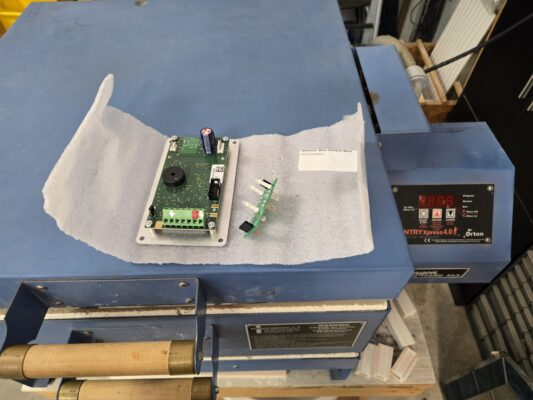
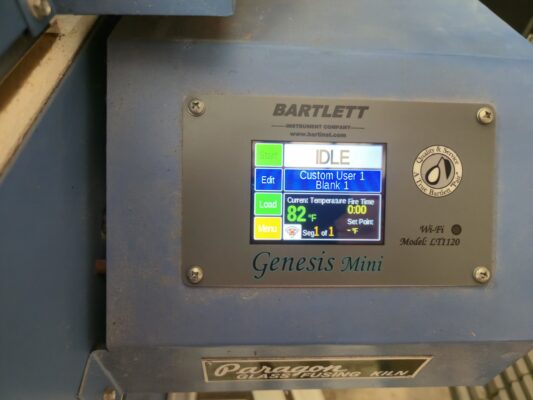
The screen on the Genesis Mini is quite small; even using a stylus, I found myself miss-keying numbers. I anticipated this, which is exactly why having a functional app was a priority for me. Unfortunately, the app hasn’t been the perfect solution I hoped for.
Sadly, the user experience is not intuitive. Typing in schedules is cumbersome, even on a tablet with a keyboard. The interface just feels like it was developed by an engineer who used to write programs in FORTRAN (and I can say that, because I used to write programs in FORTRAN). The app could definitely use a few tweaks to its menu layouts, default settings, and copy functions.
The programming workflow unnecessarily complicates the process. After typing in a schedule, you can “load” it directly to the kiln, but it won’t actually save it there. Alternatively, you can save it to the cloud. To get a firing schedule to permanently reside on the kiln—which is what I wanted—I have to save it to the cloud first. Here are the steps required to load it from the cloud to the kiln.
Steps to load a saved program from the cloud to the kiln
- Open the app on your phone, log in, select your kiln.
- Select Program from the bottom of the screen.
- From the pull-down menu at the top select Program Controller Remotely.
- On the next screen you can select Your Saved Programs with a radio button. Sometimes this screen does not come up, and you have to back out and start over.
- Select the saved program you want to load to the kiln.
- Scroll to the bottom of the screen and press Review Program
- At the bottom of the screen select Send Program to Kiln
- After about anywhere from 10 to 30 second on my network the kiln will beep and say a program has been loaded
- Then press Home
- Press Edit
- Press Copy
- Select a blank user program
- Select Copy.
By the time I do all these steps, I could have entered the program manually into the kiln; provided I don’t hit the wrong buttons on the touch screen.
You might wonder why I don’t just run everything strictly through the app. The reality is that even with a newly installed network extender in my garage, the kiln occasionally drops its w-fi connection. I have also had to re-pair the kiln to the app multiple times (and I’m still not entirely sure why local pairing is necessary if the unit is already on the network). For my tried-and-true “Load & Go” schedules, I want them stored locally so I can launch them directly from the kiln without relying on a wireless connection.
All that being said, I still absolutely recommend the Bartlett controller and would buy it again. Their customer service is top-tier. While the app has its flaws, it is still incredibly useful—especially for monitoring temperatures remotely—and the new digital screen is a massive upgrade over my old 3-key controller.
As a final side note: when I initially called Paragon to look into a replacement, they were selling this exact same Bartlett controller, branded for Paragon, for nearly double the price.
Update
After using for 2 months, it does get easier to enter the firing schedules directly on the kiln controller. One thing that helps is that I now have several generic schedules saved (i.e. 5, 6, 7, and eight segments). When I create a new schedule with specific temperatures, hold, ramps, I copy one of these and adjust it where needed.